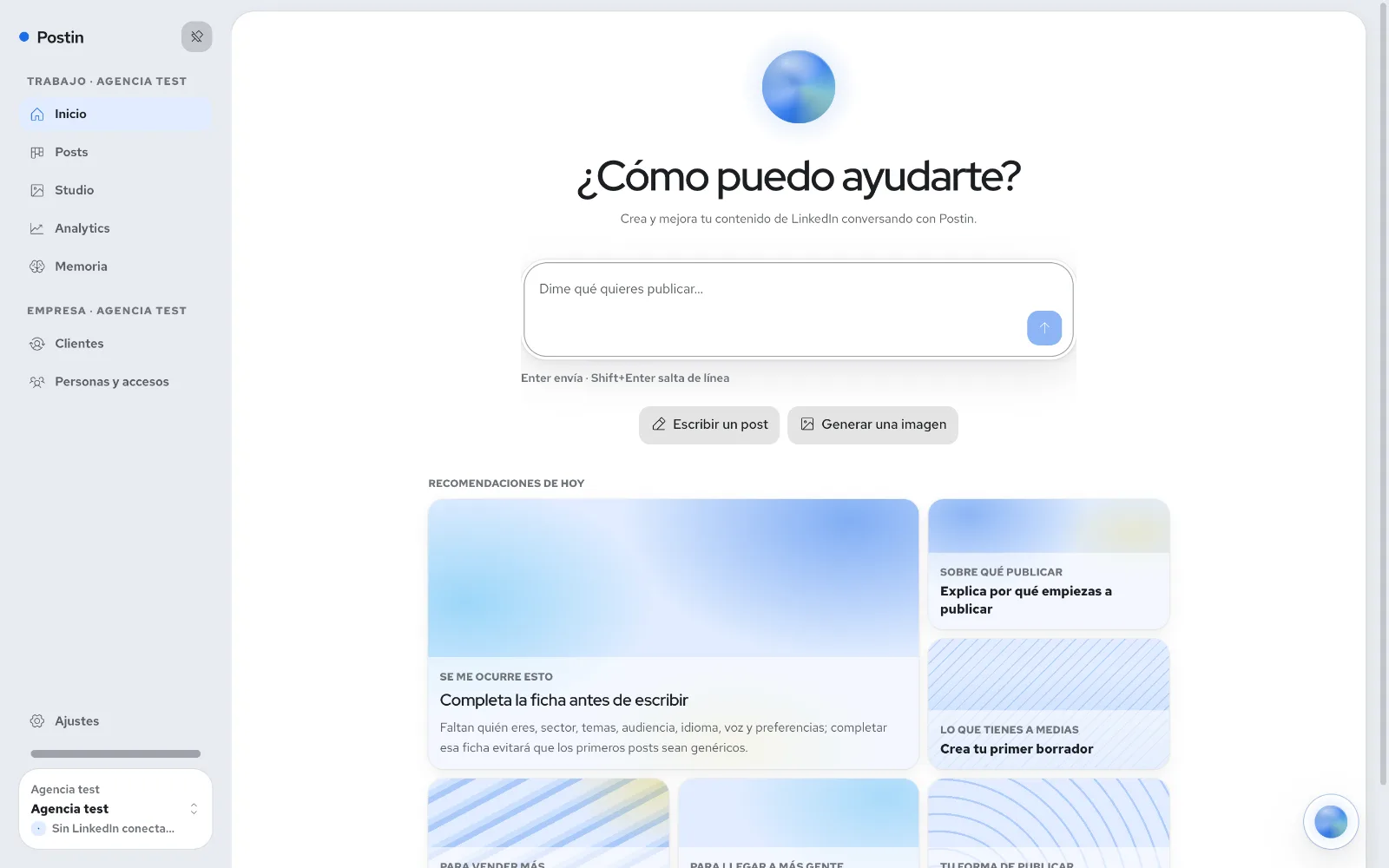
Schedule LinkedIn posts, from draft to calendar
To schedule a LinkedIn post with Postin, you open the draft, pick a day and time, and schedule it. At that time Postin publishes it from its server, through LinkedIn's official API, even if your browser is closed. Only the version you approved goes out.
How it works
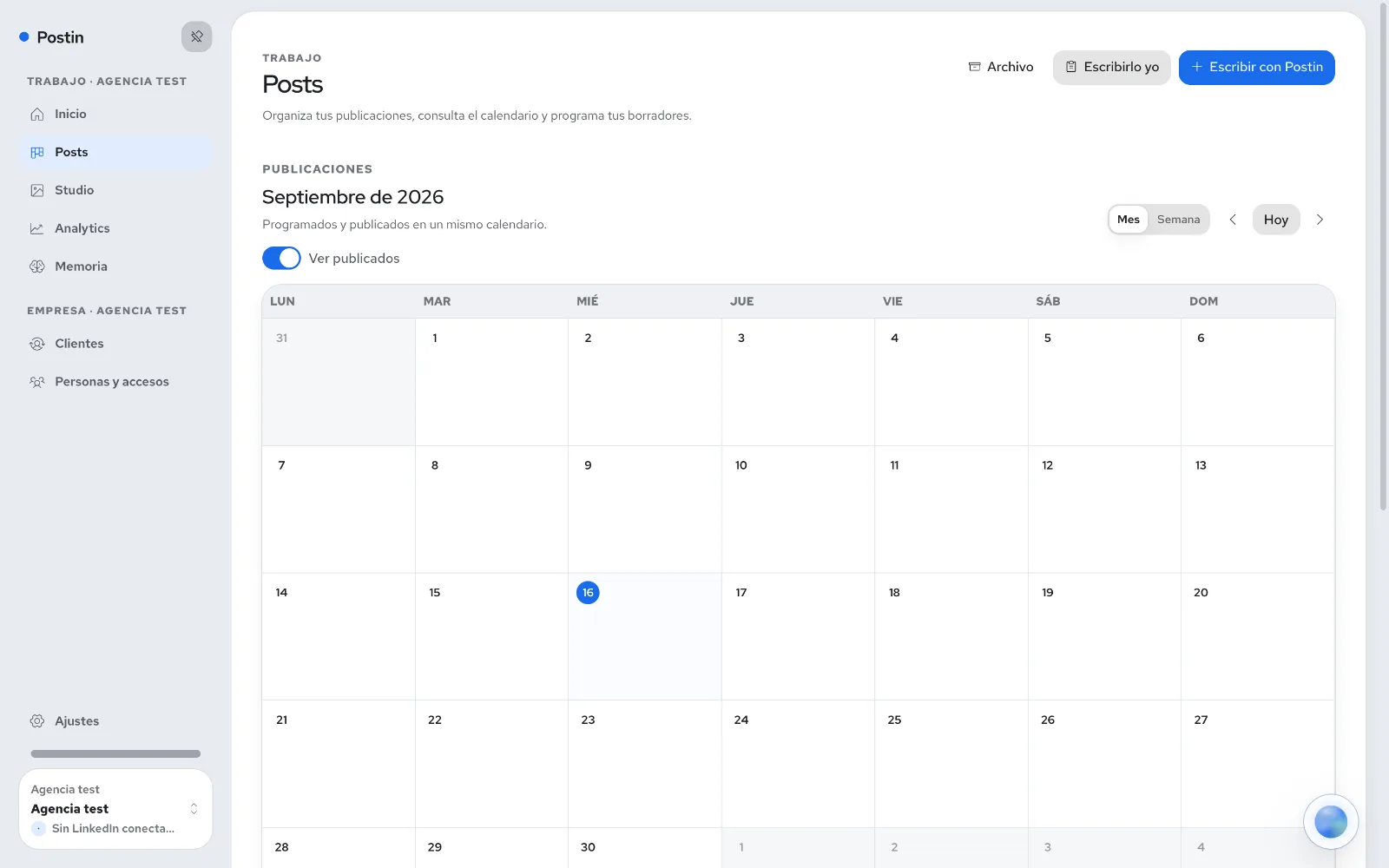
Each post at its own time, on one calendar
Everything you prepare lives in Posts: a calendar with month and week views, plus Drafts, Approved, Scheduled and Published lists. You can reschedule a post, and if you cancel its schedule, it goes back to Drafts or Approved. If you want it out right now, “Publish now” asks you to confirm first.
- Month and week views
- Drafts, Approved, Scheduled and Published
- Reschedule or cancel without losing the post
- Published from the server, through the official API
Formats
Text, images, video, a document or a link
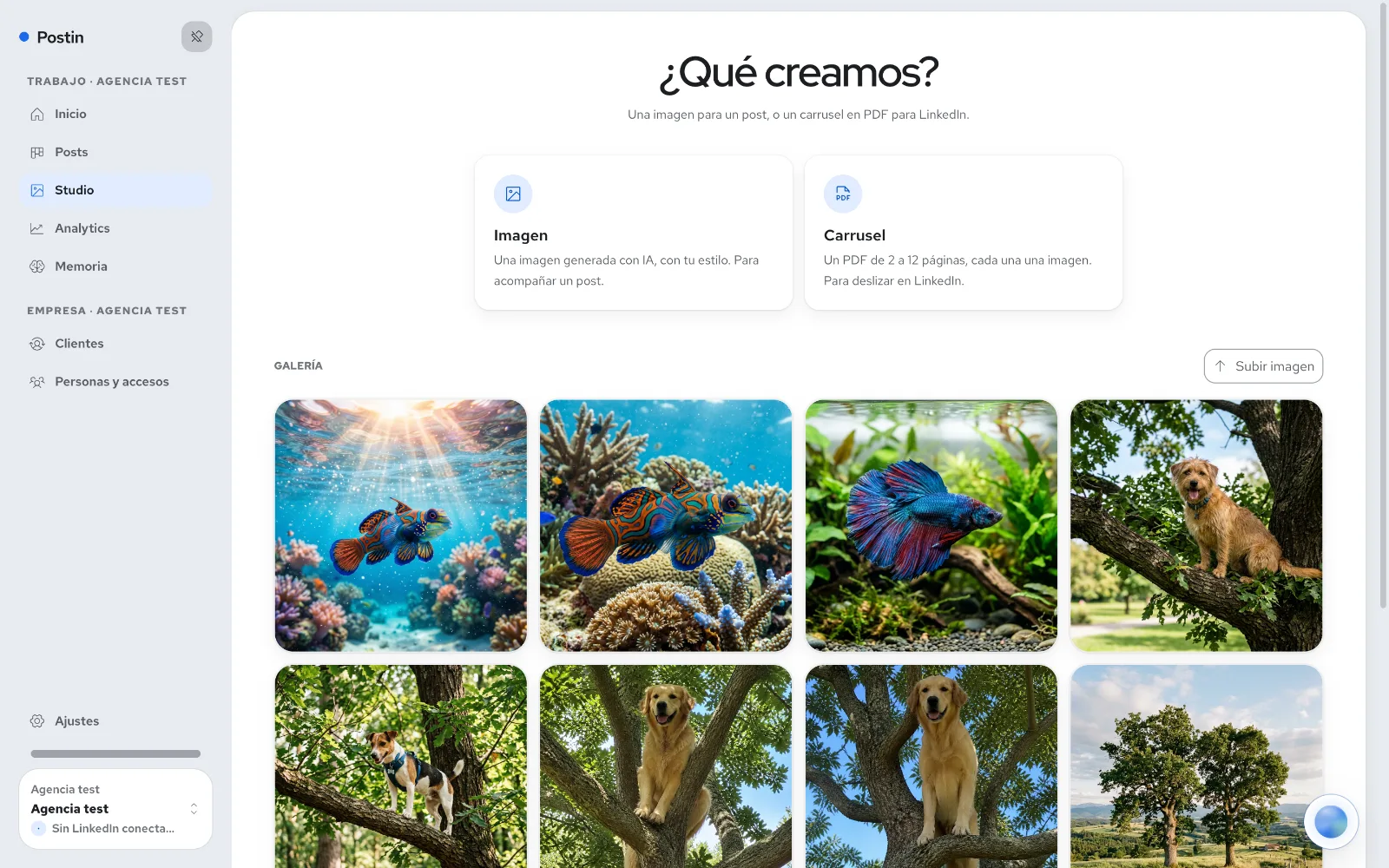
Text goes up to 3,000 characters and can go on its own or with an attachment. Each post carries one type of attachment. A carousel is published as a document: you upload a PDF, a Word file or a PowerPoint. On the paid plans, Studio uses AI to create images and PDF carousels of up to 12 pages.
- Up to 9 images
- One MP4 video
- One PDF, Word or PowerPoint document, for the carousel
- A link with a preview
If something fails
It tries again, and if it can't, it tells you
If a scheduled post fails because of a temporary error, Postin tries again. If it still doesn't go out, Postin emails you so you can decide what to do. If it hasn't started publishing 2 hours after its time, it won't publish it anymore. And if the connection with LinkedIn drops, what's scheduled waits without being deleted.
- A retry if it fails because of a temporary error
- An email if it still doesn't go out
- If it hasn't started after 2 hours, it doesn't go out
- Scheduled posts aren't deleted if the connection drops
Time zone
It's your account's time that counts
If you pick Tuesday at 9:00 a.m., the post is scheduled for 9:00 a.m. in your account's time zone. Your browser's time zone doesn't count, so scheduling while you travel doesn't change the time. Postin doesn't pick the time for you or suggest “best times”: you decide, with what you know about your audience.
- An exact day and time for each post
- The time in your account's time zone
- No suggested times: you choose
Approval
Only the approved version is published
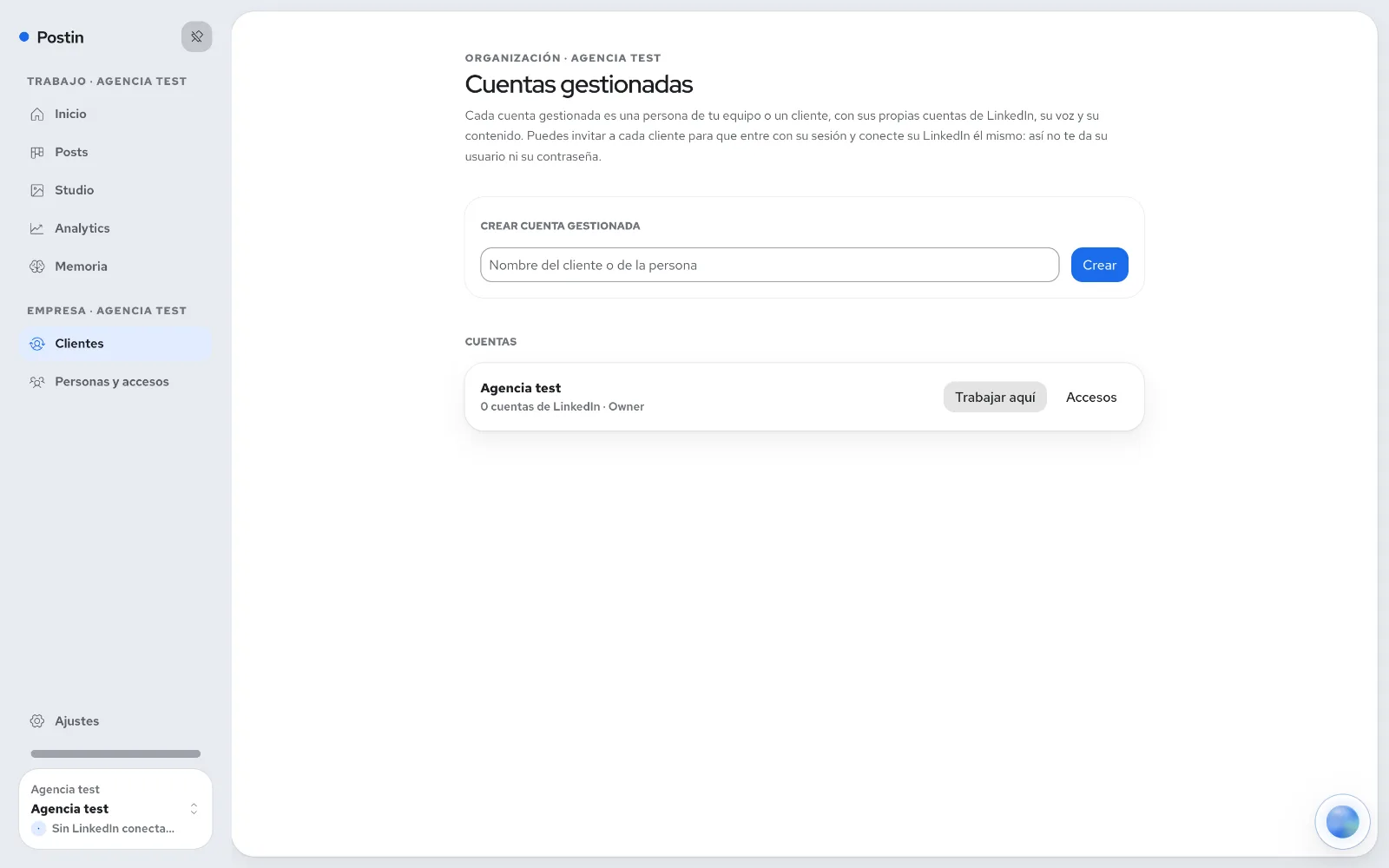
Each post keeps its recent versions, and you can restore an earlier one. The approved version is the one that's published: if someone creates a new one, the approval is removed and the schedule is canceled. On an individual account, scheduling already approves that version. On Agency and company, someone on the team with permission approves it, or your client does from a link, without creating an account.
- Recent versions you can restore
- A new version removes the approval and the schedule
- The client approves, rejects or asks for changes with a reason
- The link expires after 7 days and can be resent
Step by step
How to schedule your first LinkedIn post
- 01
Connect your LinkedIn
Connect your personal LinkedIn profile. Postin publishes through the official API and doesn't publish to company pages.
- 02
Prepare the draft
Tell the chat your idea or paste your text, and ask for changes until it sounds like you. If you're starting from an article, paste the text: the chat doesn't read links.
- 03
Add the attachment, if there is one
Up to 9 images, one MP4 video, a document for the carousel or a link with a preview. One type of attachment per post.
- 04
Review the final version
Read all of it: it's the one that will be published. On an individual account, scheduling already approves it; if the post is for a client, send them the approval link first.
- 05
Pick a day and time
Pick the day and time and schedule it. The time is in your account's time zone, and Postin doesn't pick it for you.
- 06
Check it on the calendar
You'll see it in Scheduled and on the calendar. If your plans change, you can reschedule it or cancel the schedule.
Frequently asked questions
What people ask us.
What is Postin?
Postin is an AI social media manager for LinkedIn that writes in your language. It learns your voice, suggests what to post, drafts it and schedules it. It never publishes without your approval. Scheduling is the last step: you pick the day and time.
Do I need to have Postin open when the post goes out?
No. Postin publishes from its server through LinkedIn's official API, so it doesn't matter if your browser is closed. At the time you picked, Postin publishes it.
Can I change a post that's already scheduled?
Yes: you can reschedule it for another day or time. If you cancel the schedule, it goes back to Drafts or Approved. If you create a new version of the text, the approval is removed and the schedule is canceled, so nothing goes out unreviewed. Once you've reviewed it, you schedule it again.
How many posts can I schedule on the free plan?
The Free plan never expires and doesn't ask for a card, and the paid plans can be tried. What each plan includes, including how many posts you can schedule, is on the pricing page.
How does a client approve a post before it's published?
On the Agency and company plan you send them an approval link. They don't need a Postin account: they open the link and approve, reject or ask for changes with a reason. The link expires after 7 days and can be resent.
What doesn't Postin do when scheduling?
It doesn't publish to company pages: only to personal profiles. It doesn't pick the time for you or suggest “best times”. There's no bulk or recurring scheduling. And the chat writes, but it doesn't schedule or publish: you make that click.
Keep reading
Your next post, with a day and time
Create your free account and schedule the first one. The Free plan includes scheduling and never expires.